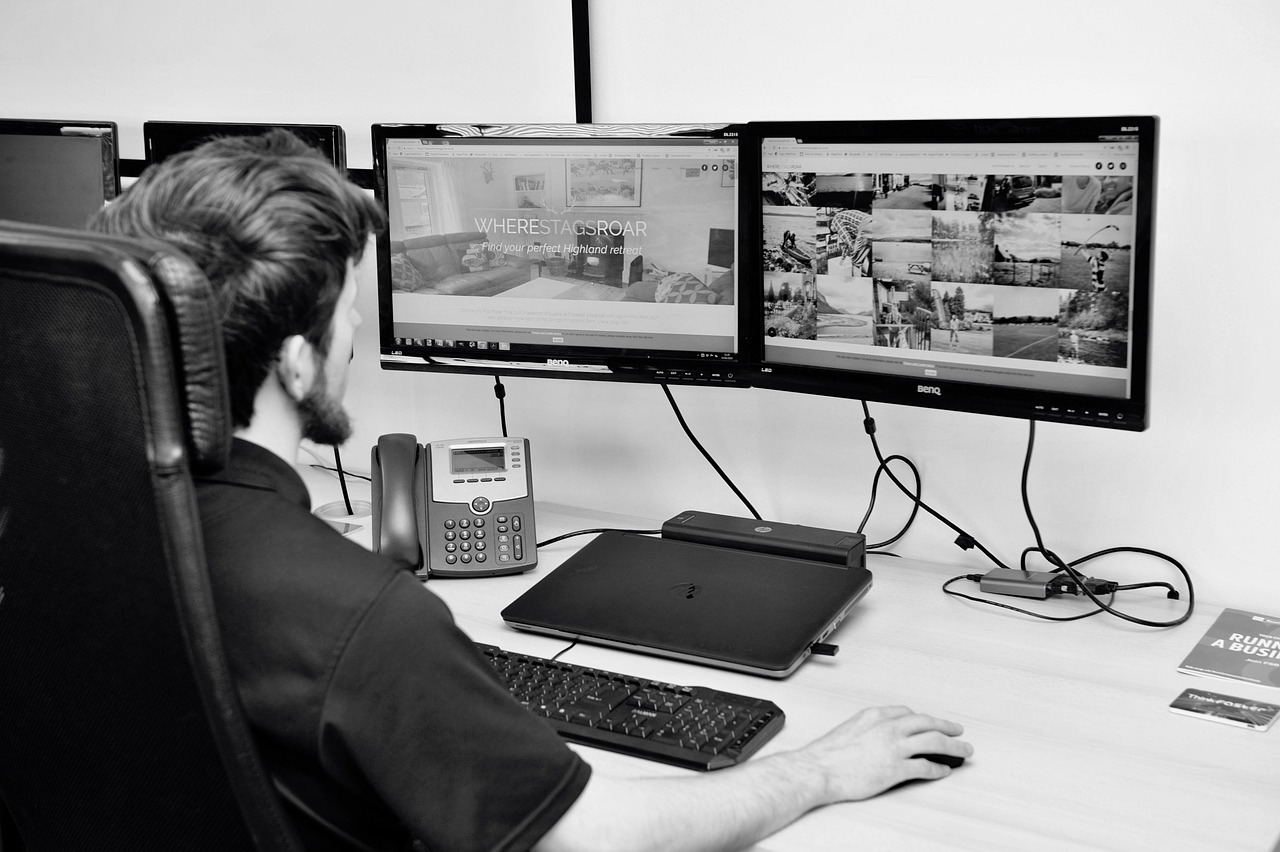
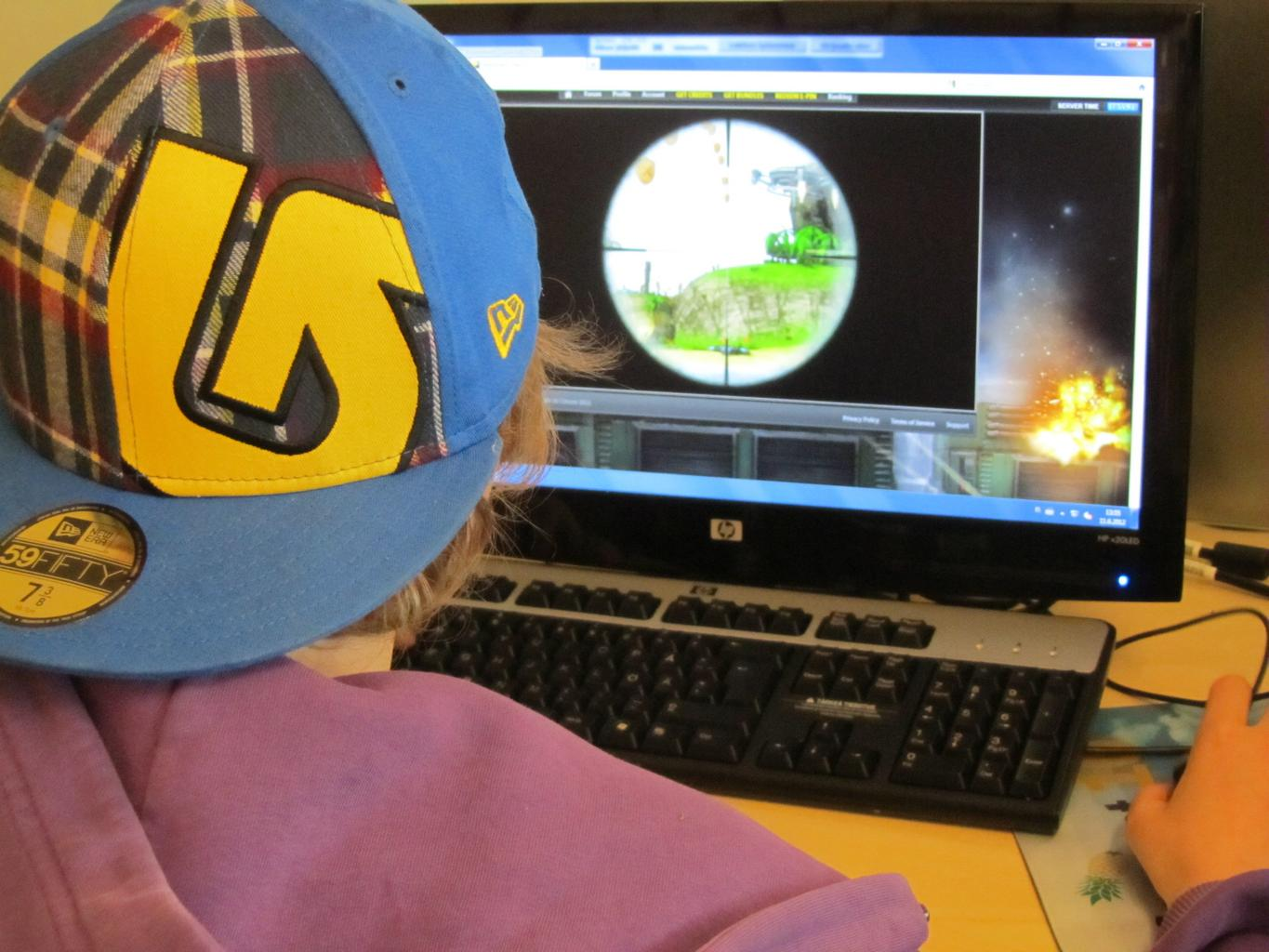
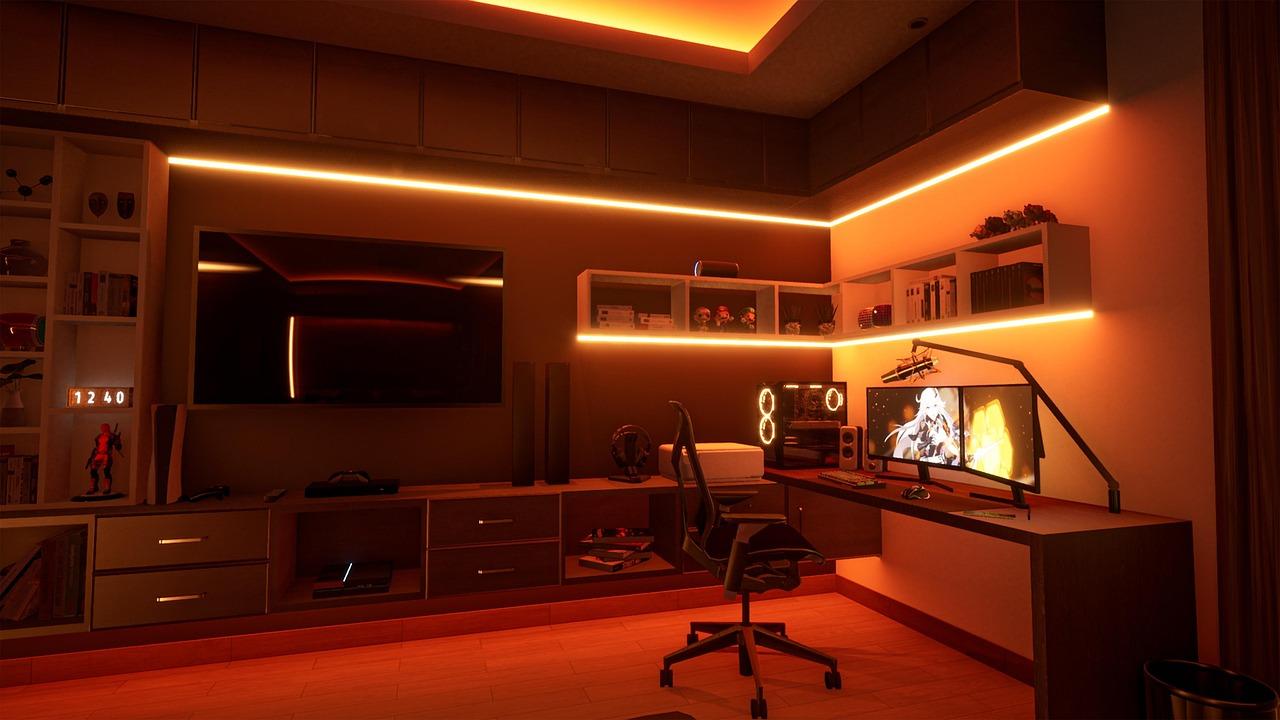
A dual monitor setup transforms gaming and productivity. Your primary monitor handles gameplay while the second shows Discord, stream chat, guides, or a browser. Setting it up correctly takes about 15 minutes with this guide.
What You Need Before Starting
A GPU with at least 2 display outputs (HDMI, DisplayPort, DVI)
Two monitors (matching refresh rates recommended but not required)
Appropriate cables (HDMI or DisplayPort recommended)
Step-by-Step: How to Connect Dual Monitors
Step 1: Power off your PC. Connect Monitor 1 to your GPU’s primary port (use DisplayPort for high refresh rate). Connect Monitor 2 to a second GPU port.
Step 2: Power on PC and monitors. Windows should auto-detect both displays.
Step 3: Right-click desktop → Display Settings. You’ll see both monitors represented as rectangles. Drag them to match their physical position (Monitor 2 on right, left, or above).
Step 4: Click on Monitor 1 → scroll down → check “Make this my main display.”
Step 5: Set refresh rate for each monitor: Display Settings → Advanced display settings → each monitor → choose its max refresh rate.
Configuring Games for Dual Monitor Use
Most games default to the primary monitor. To use the second for YouTube/Discord while gaming:
Set the game to Windowed Borderless mode (not Fullscreen)
Move the game window to your primary monitor
Click anywhere on Monitor 2 to access it without the game minimizing
Conclusion
Dual monitor gaming setups are one of the best quality-of-life upgrades available. Once set up, you’ll wonder how you gamed without it. Keep Monitor 1 as your game display and reserve Monitor 2 for communication and reference.